This article explains the user interface of the main menu of Arknights. For specific components, refer to their own articles, such as Terminal, Rhodes Island Infrastructure Complex, or Archive.
For privacy reasons, the IGN and UID of the source player on the images below are blurred out.
Some elements of the user interface have received updates in the CN server. See Upcoming UI changes for further information.
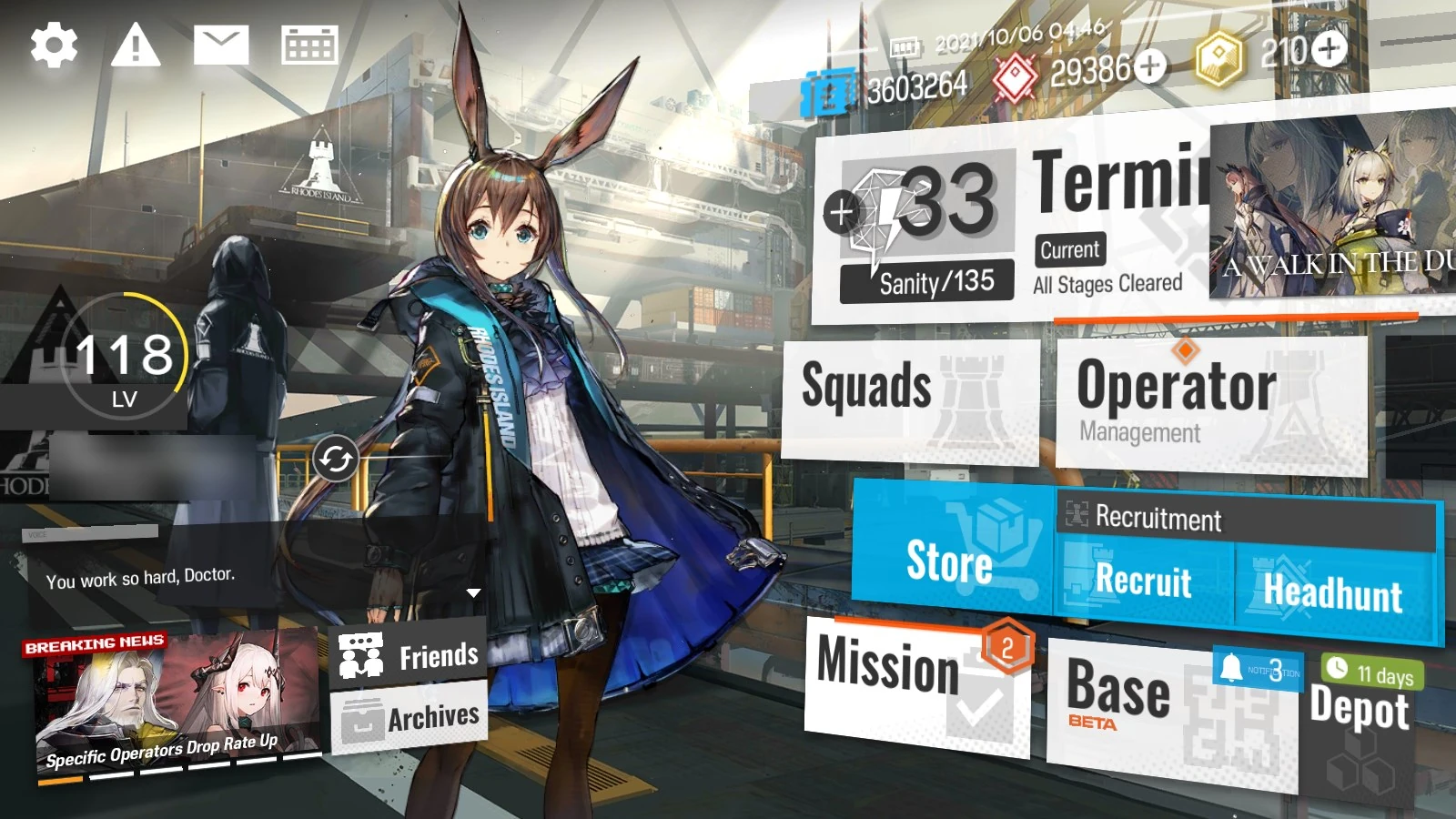
- Upper-left section
- Options — Shows the game settings menu.
- Notice — Displays important messages.
- Mail — Displays the Mail Box.
- Daily Sign-In — Displays the Daily Sign-In menu.
- Middle-left section
- Shows the player's level, in-game name, and UID.
- Friends — Takes the player to the Friends menu.
- Archives — Takes the player to the Archives menu, containing several submenus, such as the Network of characters, the Enemy units menu, the Fashion Gallery displaying outfits, the Intelligence menu to read past event cutscenes, and the Path to Glory menu to view and manage medals earned.
- Bottom-left section
- Shows the Assistant Operator's spoken voice line when the player enters the main menu, triggered by player idle, or upon clicking their character art.
- Notifies the player about the ongoing event and/or headhunting banners.
- Right section
- Combat — Takes the player into the Terminal. The ongoing event is also shown, and the player will be taken into the event's menu upon clicking it; the image above is taken during the initial run of the A Walk in the Dust event on the Global server.
- Squads — Takes the player into the Squads menu.
- Operator Management — Takes the player into the Operators menu.
- Store — Takes the player into the Store.
- Recruitment — Takes the player into the headhunting and recruitment menus, which are displayed together.
- Mission — Shows the list of missions. Only Daily, Weekly, Pinboard, and Campaign missions are displayed here.
- Base — Takes the player into the Rhodes Island Infrastructure Complex base.
- Depot — Takes the player into the Depot menu, which shows a list of Item.
Settings
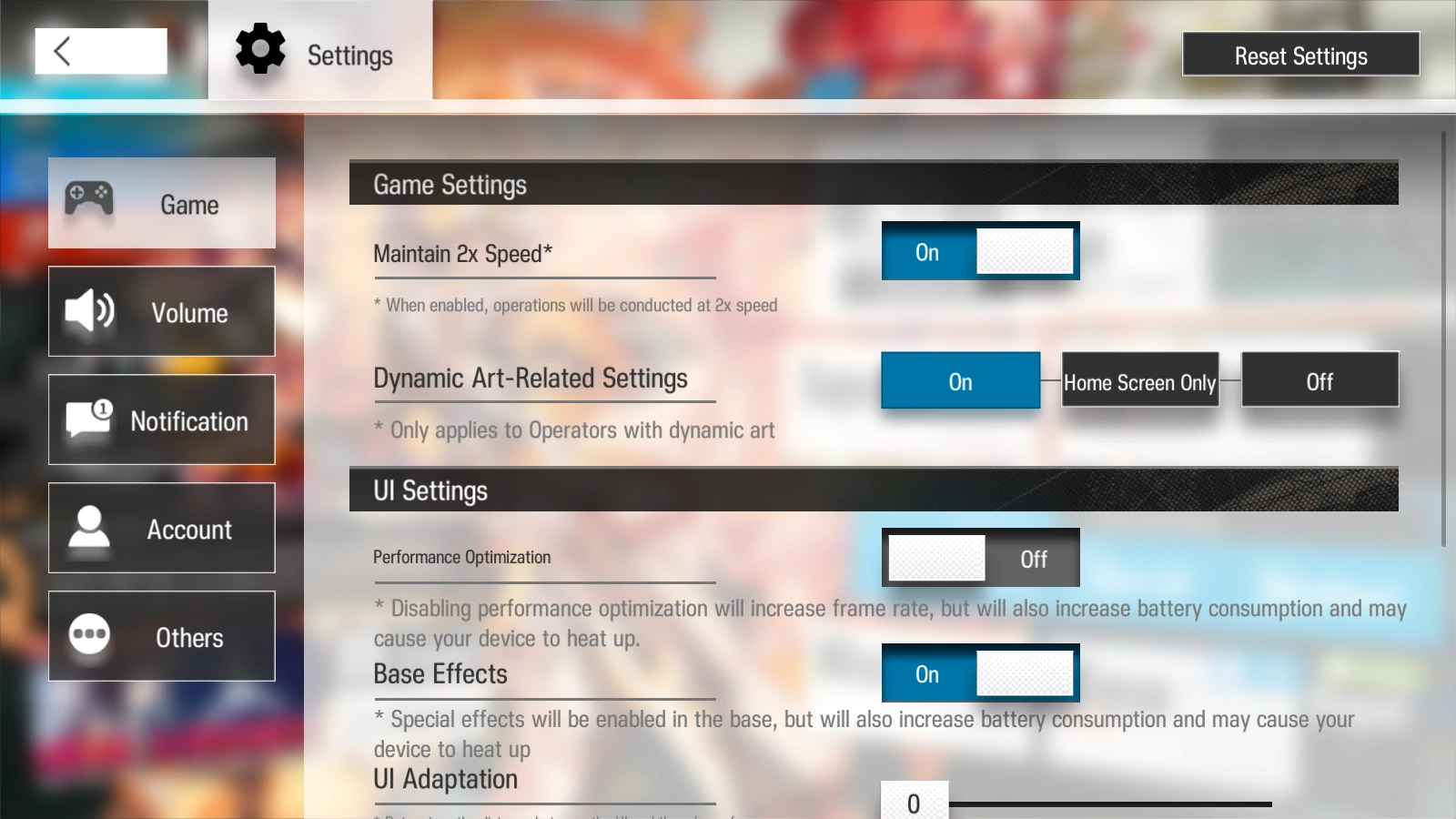
- Game Settings
- Maintain 2x Speed: If enabled, auto deploy runs will start at 2× speed by default.
- Dynamic Art-Related Settings: Added in Under Tides along with the introduction Skadi the Corrupting Heart, the first Operator featuring a Live2D model, this option has three settings:
- On: Operators with Live2D models will have them animated anywhere.
- Home Screen Only: Operators with Live2D models will only have them animated on the home screen.
- Off: Operators with Live2D models will only use their normal, static artwork both on the home screen and Operator menu.
- Performance Optimization: If enabled, the framerate or FPS (frame-per-second) will be reduced, improving battery life and reducing device heat. Performance Optimization can be enabled if Arknights is played on a mobile device to save battery power, but must be disabled if the game is played on an emulator as it can cause issues with gameplay synchronization.
- Base Effects: If enabled, special effects such as floodlights will be added to the RIIC facility displays. Base Effects should be disabled unless the player has a powerful mobile device or high emulator memory, as it might cause framerate problems, and will increase battery usage and device heat if enabled on the former.
- UI Adaptation: Slider to add a border on the horizontal axis of the UI. 0 uses all of the screen space, whereas 100 adds a large margin between the left and right side of the screen and the effective UI.
- Video Resources: Download video cutscenes.
- Voice Resources: Download voice lines.
- Volume Settings
- Music volume slider
- Sound effects volume slider
- Voice lines volume slider
- Notification Settings
- Deployment Tips: Turn on or off the tooltip that explains the controls when deploying operators.
- Exiting Base Notification: Turn on or off the warning that asks for confirmation upon leaving the base.
- Factory Refill Notification: Turn on or off the notification that the factory backlog has been refilled.
- Automatic Resupply: When active, this will automatically refill the working queue of factories to the cap upon retrieving materials, provided the recipe does not require materials.
- Fatigued Operator Statistics: Will warn the player of fatigued operators in the base's Notification center.
- Account Settings
- Yostar: Binding to/unbinding from a Yostar account.
- Twitter: Binding to/unbinding from a Twitter account.
- Facebook: Binding to/unbinding from a Facebook account.
- Logout: Log out from the current account. This will not unbind, merely start the session on this device afresh.
- Other Settings
- Originite Prime Detail: Details the current amount of paid and free Originite Prime.
- Customer Service: Accesses help FAQ.
Notice
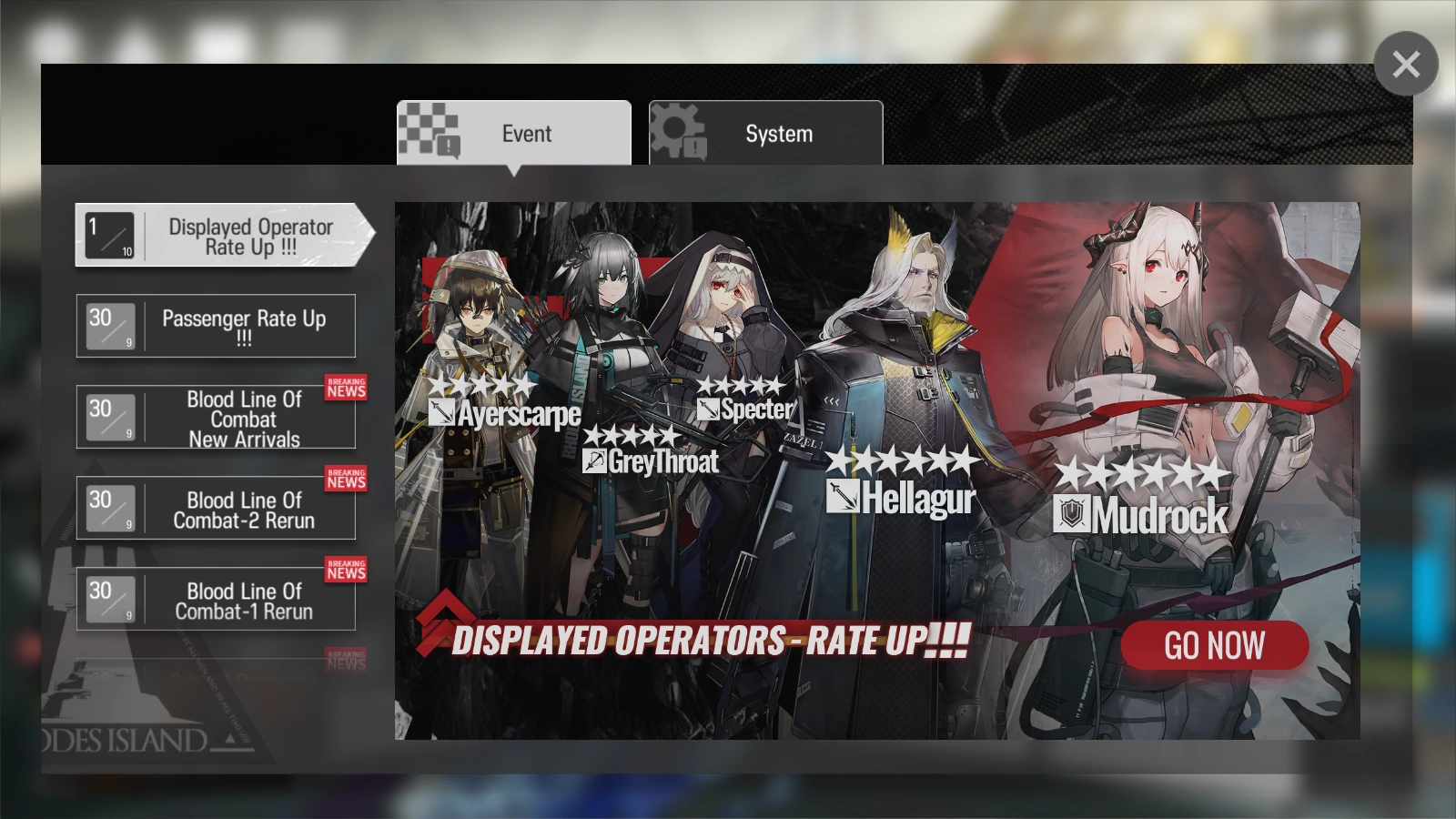 The Notice window opens upon logging in, accessing the main menu after the daily reset, or clicking the warning icon in the upper left corner of the screen.
Mail Box
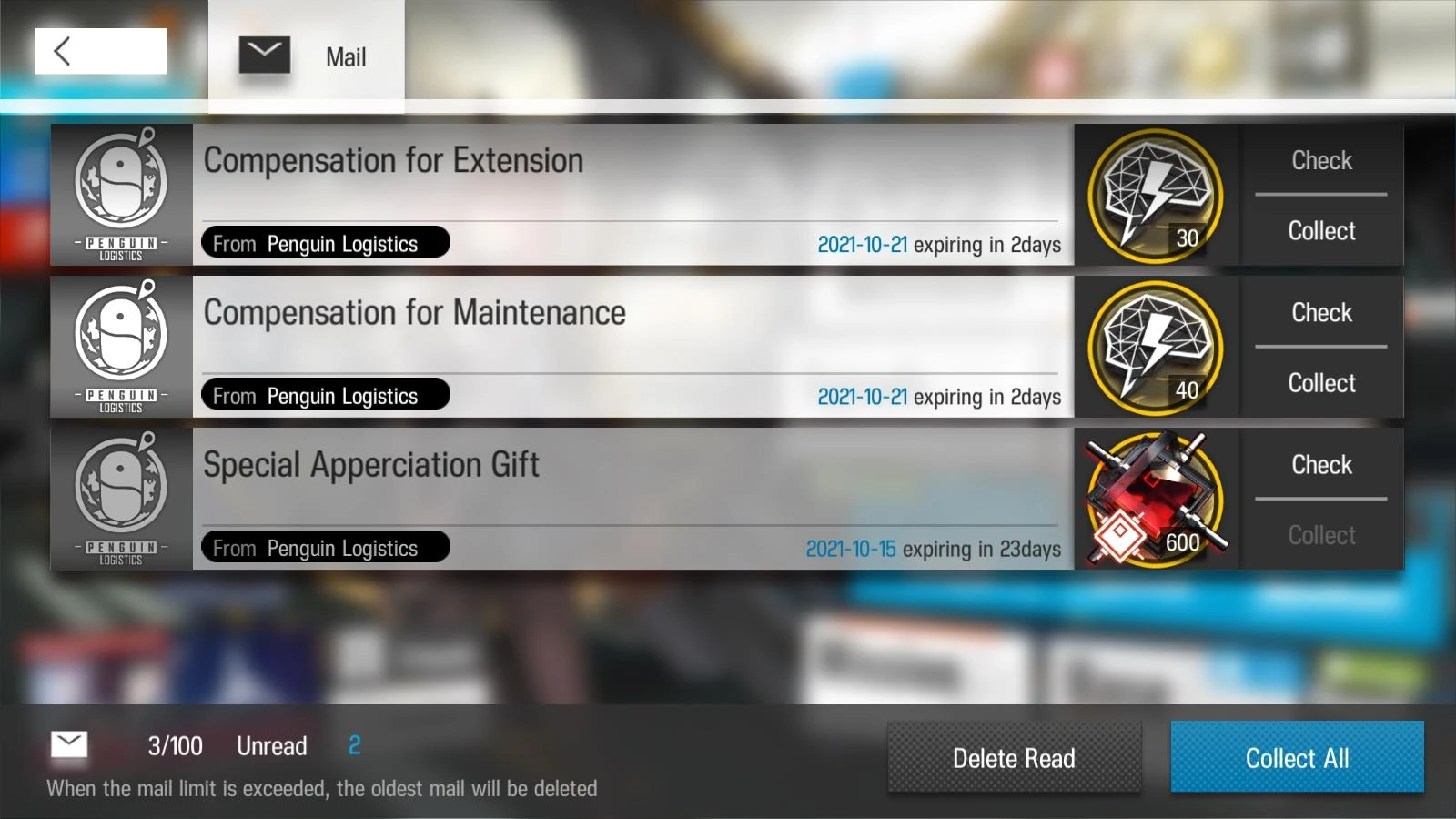 The Mail Box contains messages from Yostar (signed as Penguin Logistics) and usually consists of various items, whether maintenance compensation or event rewards.
Daily Sign-In
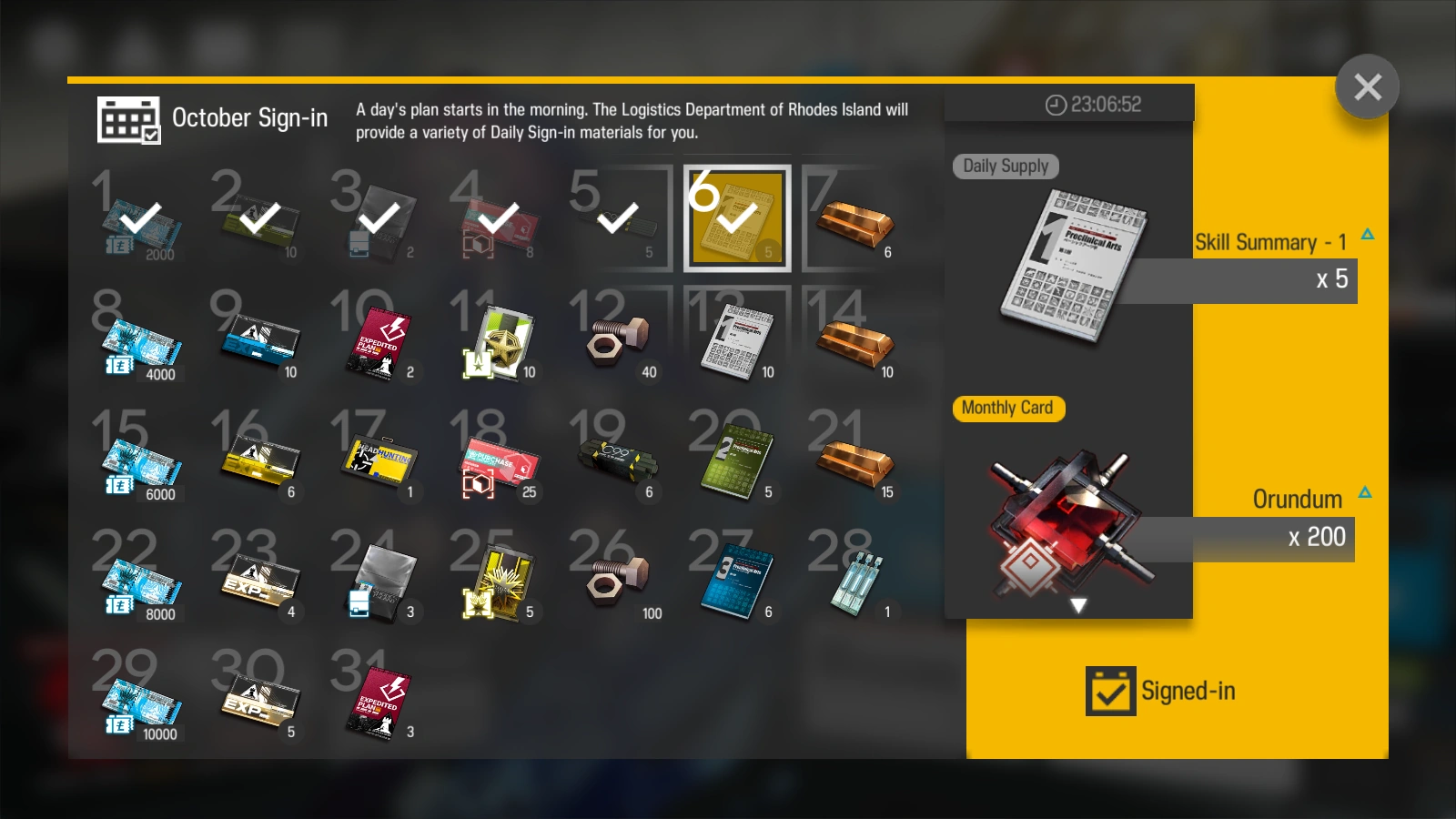 The Daily Sign-In window automatically opens after a daily reset (every 04:00 UTC-7) and displays rewards that are acquired from the free daily supply as well as the purchasable Monthly Card, if it is active.
Friends
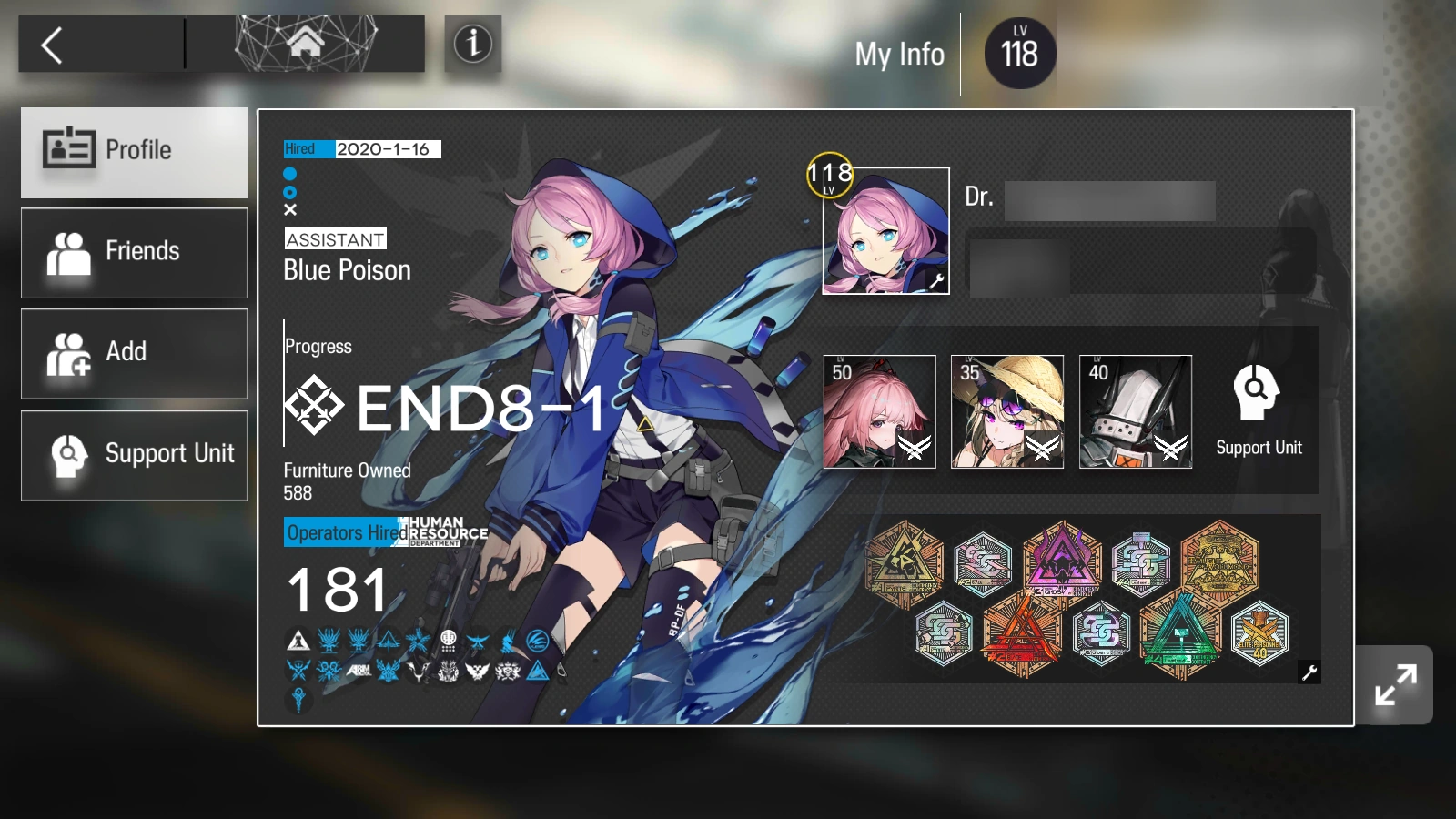 The Friends menu opens to the player's own profile card, displaying what other players will see. This profile card allows changing the player icon and which medal set (or the custom medal set which can be personalized in the Path to Glory menu). It also displays the assistant, date of account creation, player IGN and custom message, support units, current story progress, furniture count and operator count.
The faction icons beneath the window changes from greyed out if the player has no Operator(s) in the corresponding faction, to white if the faction consists of more than one Operators and the player have at least one Operator from that faction, to blue if the player have all Operators from that faction.
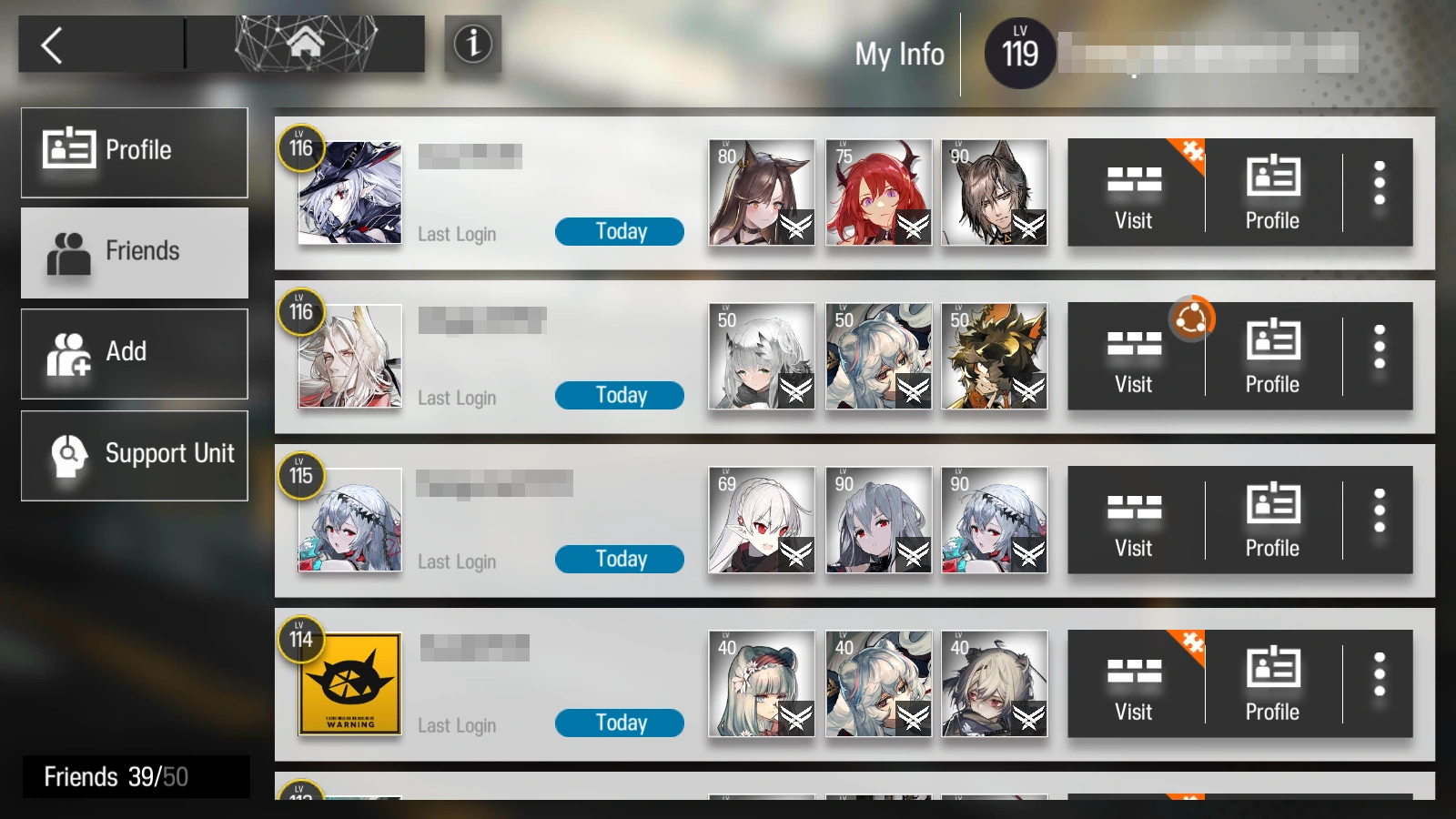 The actual Friends sub-menu displays the player's friend list. It displays player icon (available since Who is Real in Global), IGN, date of last login, Support Units, and several options such as visiting their base, viewing their profile card, removing them from the friend list, and setting a custom remark. The visit icon will be overlaid by a spinning icon if the player is undergoing clue exchange, and a puzzle piece yellow dogear if the friend is missing a clue that the player owns.
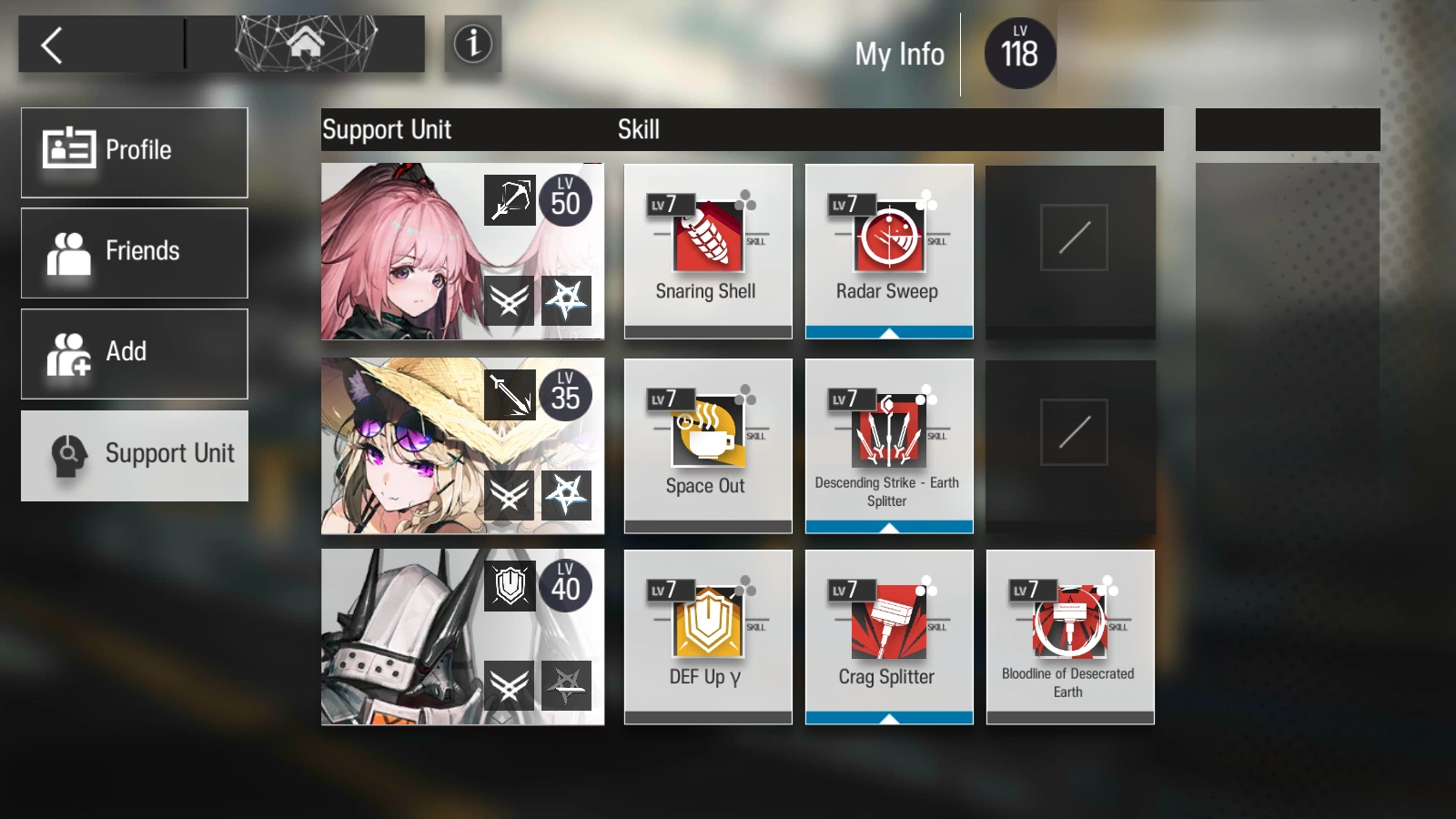 The Support Unit sub-menu allows the player to set up to three Support Units to be borrowed by friends, selecting the skill which the Support Unit uses. The first Support Unit must not be a 6★ Operator, while the second and third can be of any rarity.
Squads
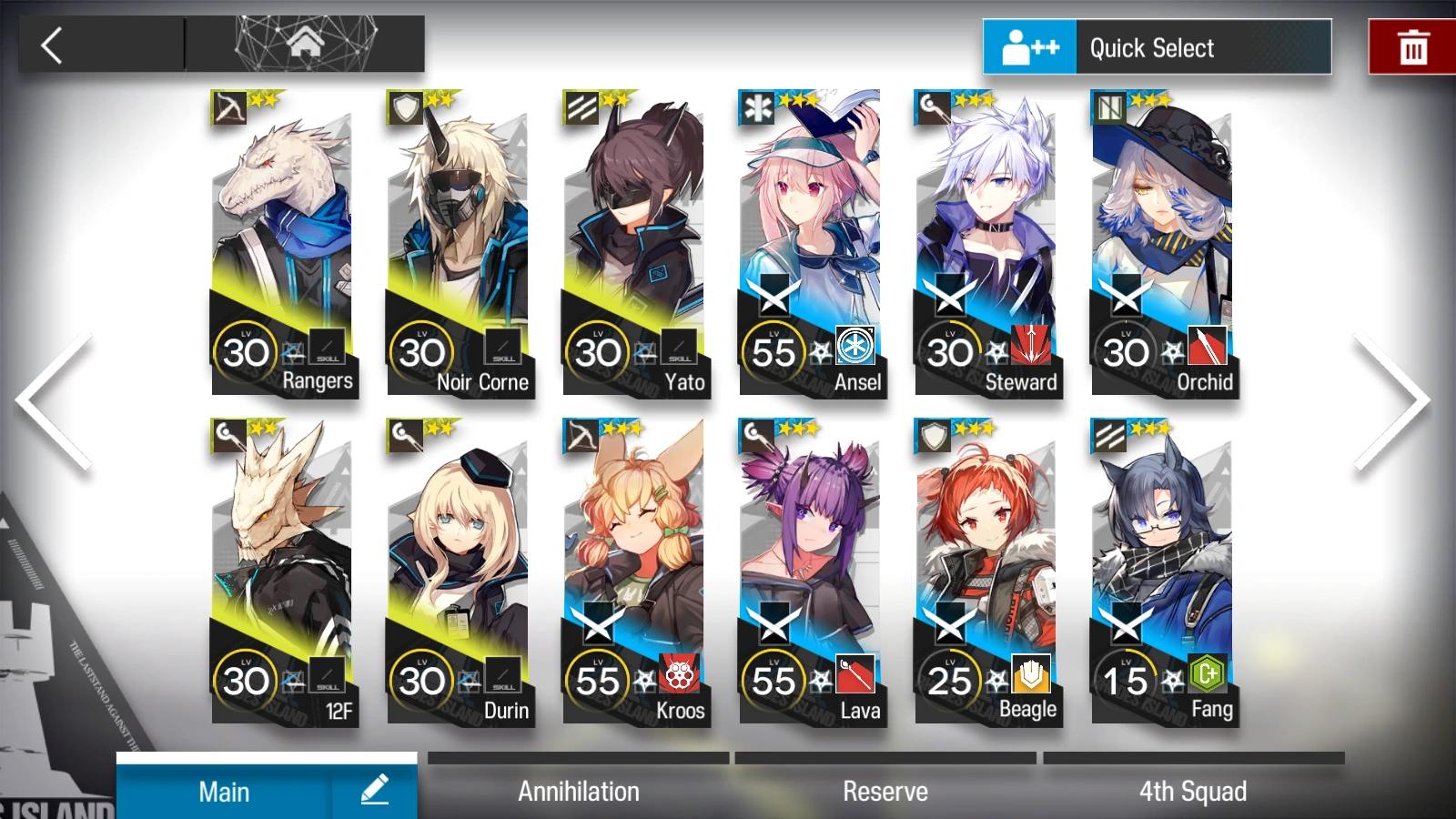 The Squad Management menu allows the player to edit and rename up to four premade squads of 12 Operators (unless under certain conditions). Squads can be selected and modified upon accessing an operation.
Operator Management
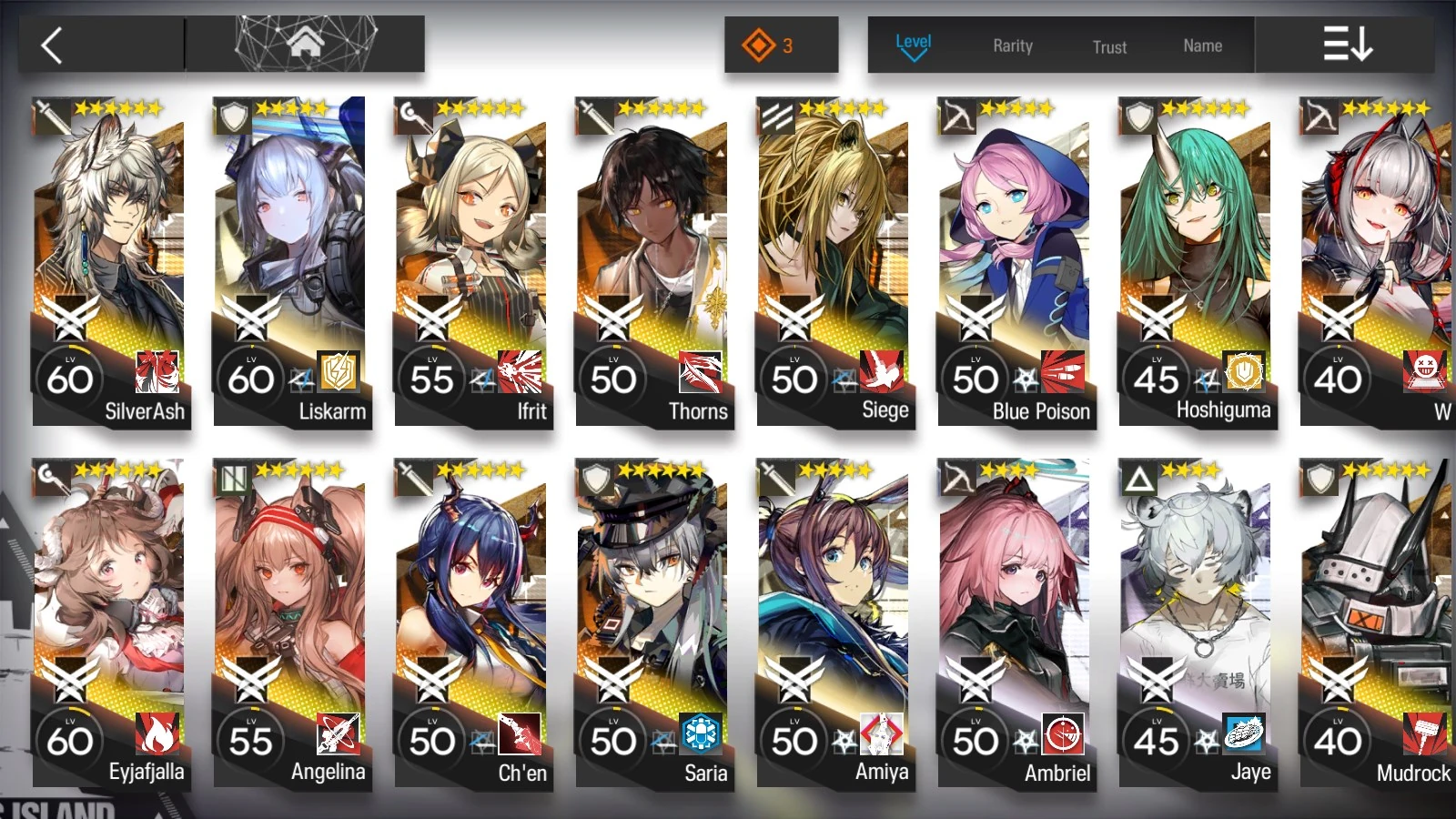 The Operator Management menu contains almost all operator options in the game, from leveling up to changing outfits and accessing their files and voice lines. The orange diamond notification button allows the player to narrow down to newly acquired operators and operators that have either received a new potential Token, or have received an Operator Record or Paradox Simulation which the player has not viewed yet.
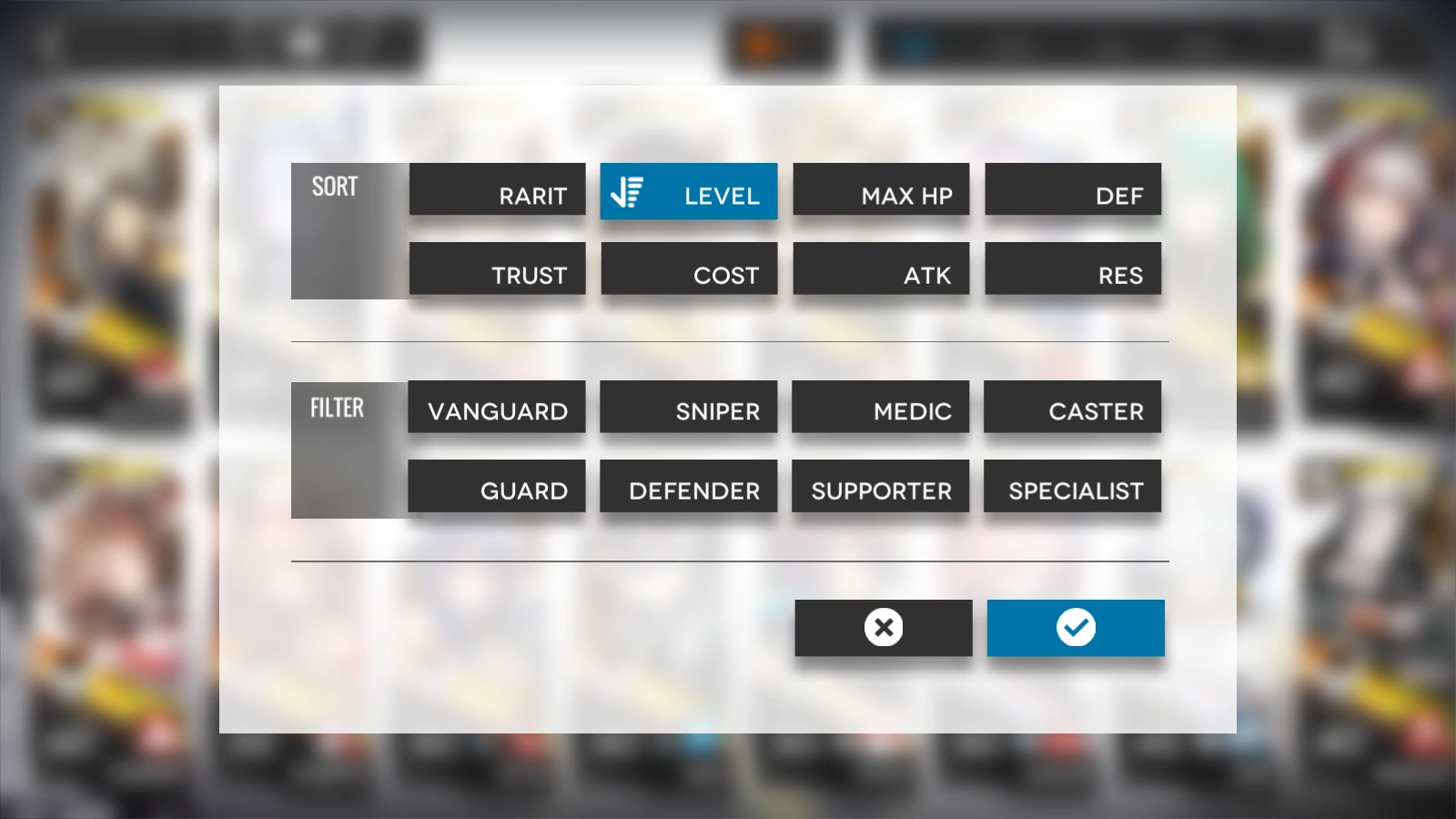 The list selection button at the end of the sorting menu allows the player to access a wider range of sorting and filtering options.
Recruitment
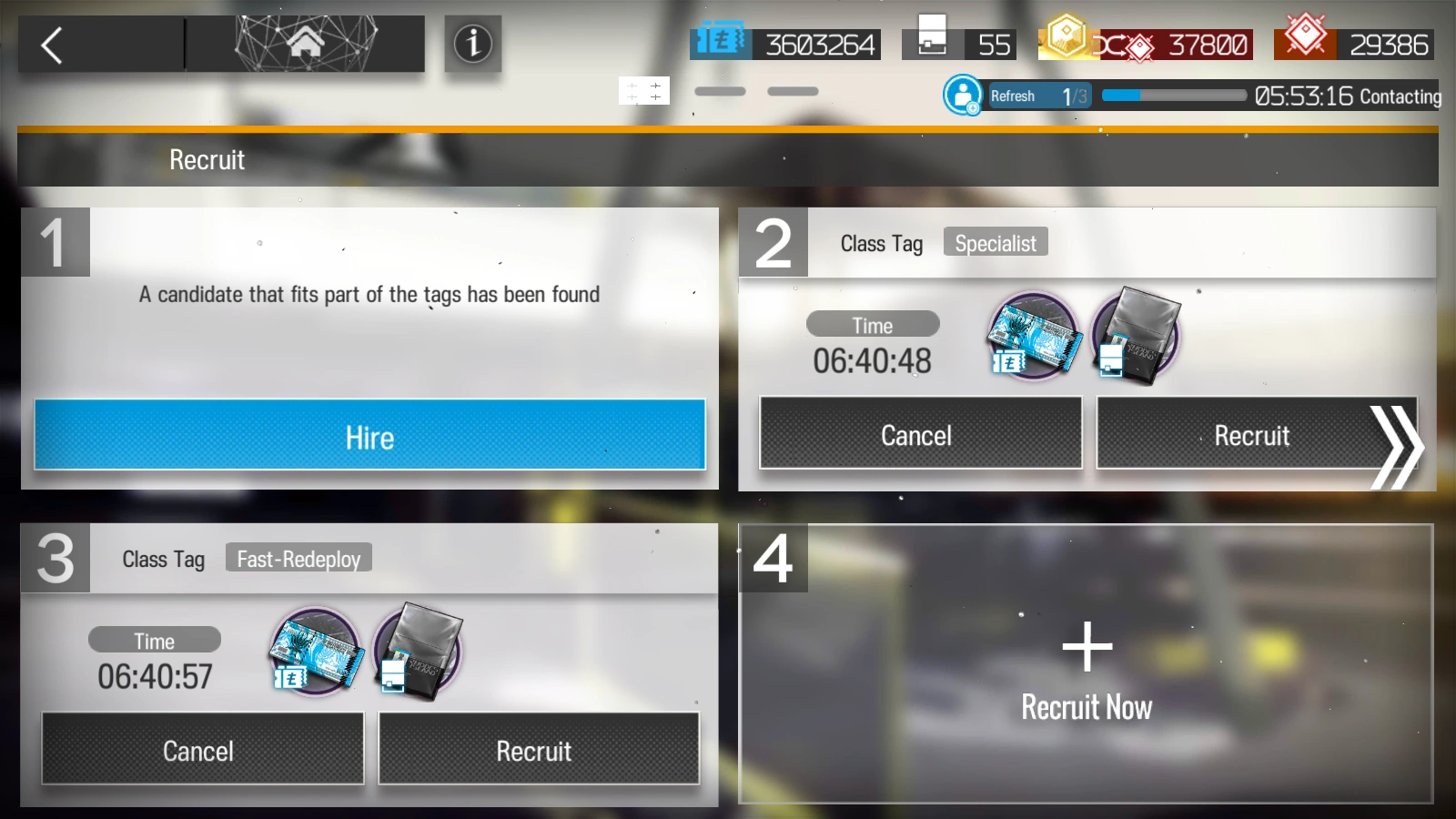
- Main article: Headhunting
- Main article: Recruitment
Mission
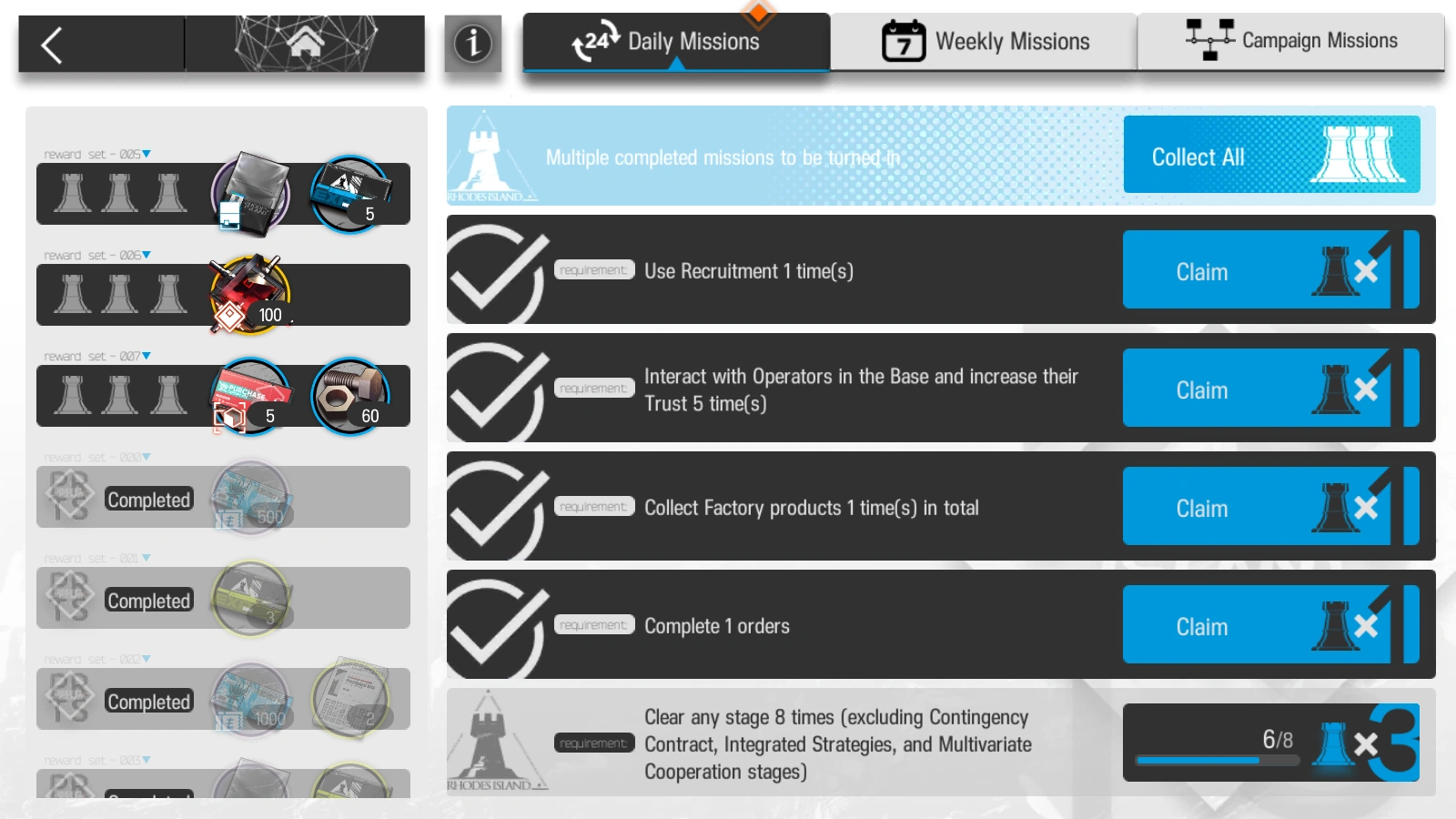
- Main article: Missions
As of the Preluding Lights event (Interlocking Competition: Hymnoi Wisdom in the Chinese server), the Missions interface has received an update adding a button allowing to claim all reward seals and all rewards available at once, instead of tapping them one by one.
Depot
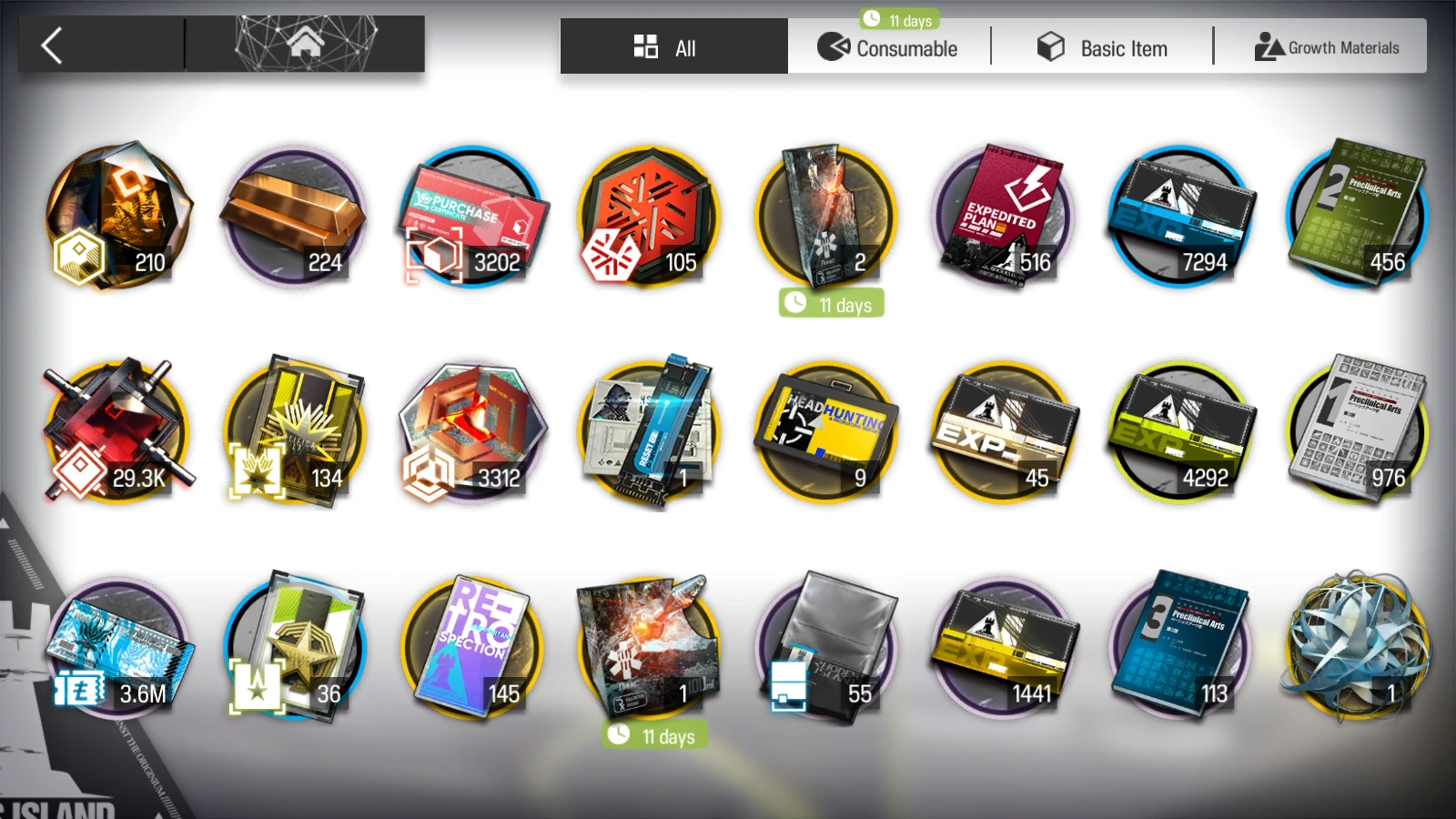 The Depot contains almost all Item owned by the player, namely consumables, currencies (with the notable exception of temporary event currencies) and materials. Furniture and Outfits are not included as they use a separate menu.